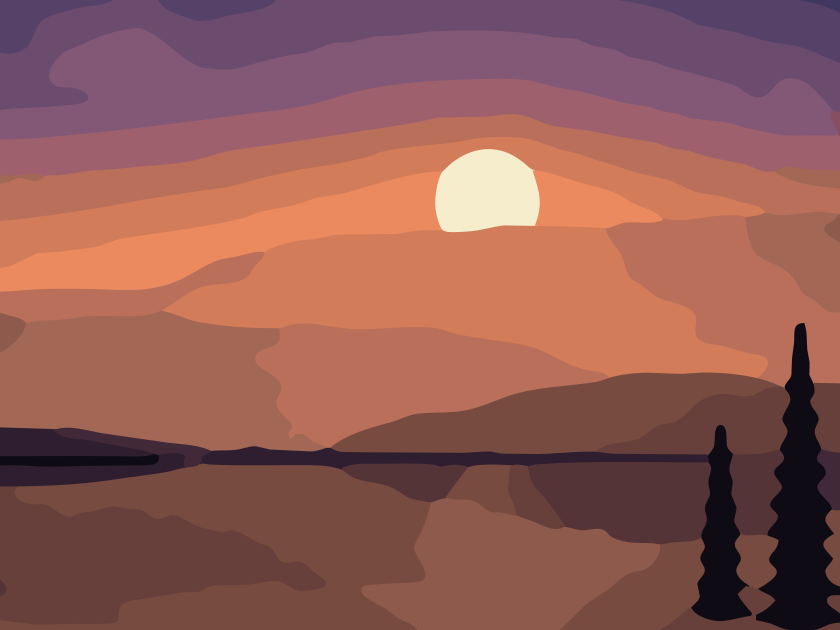
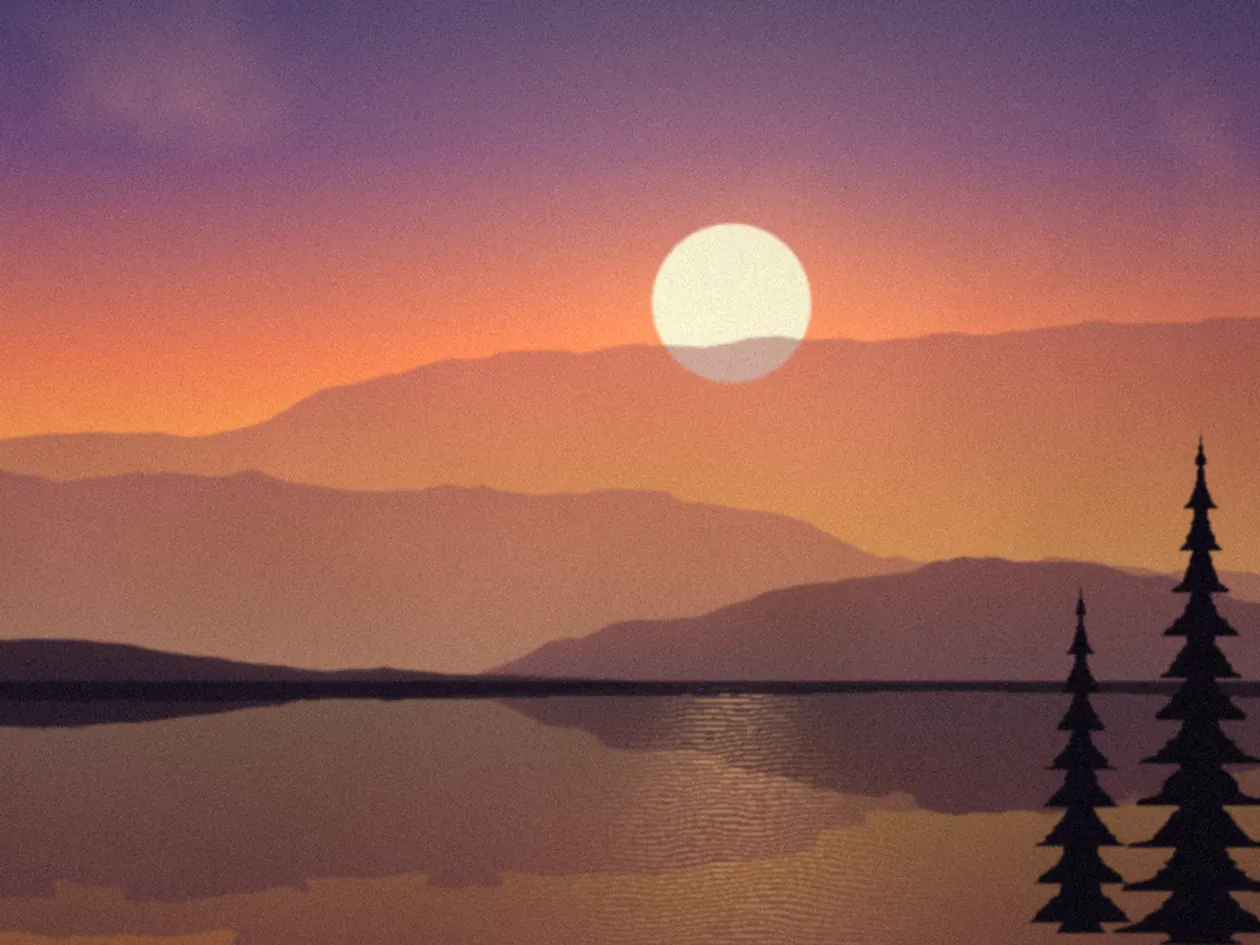
Photo to vector art
Turn a photograph into clean vector artwork — poster, flat, minimal, smooth or duotone — with shapes you can recolour and edit.
Simplification is the point
A good photo vector is an illustration in its own right. It keeps the shapes that tell you what the picture is — the silhouette, the main shadows, the strongest colours — and lets go of grain, texture and the thousand tiny variations a camera records. Get that balance right and the vector prints sharp on a T-shirt, scales up for a poster, and opens comfortably in any design app.
Before tracing, the photo is smoothed with an edge-preserving filter so regions come out as regions rather than noise. Colours are clustered in a perceptual colour space, so the palette splits where your eye sees a difference. Region boundaries are then settled by a neighbourhood vote, which keeps the edges between colour bands smooth instead of hairy.
Choosing detail
Press Compare three versions. You will see Clean, Balanced and Detailed traces side by side with their path counts and sizes. Pick one, then fine-tune with the Detail slider. A rough guide:
- Under 150 paths — graphic, easy to edit, ideal for cutting and print.
- 150–800 paths — recognisable likeness with a clear illustrated look.
- Thousands of paths — close to the photo, heavy to edit; consider whether a PNG would serve better.
Gradients and skies
Smooth gradients become stepped bands. That is honest — a flat-colour vector cannot hold a gradient — and often looks good. If the bands are too visible, add colours; if you want a bolder look, remove some. Read more in the guide on why photos need simplifying.
Related photo tools
Before you vectorize a photo
Will the SVG look exactly like my photo?
No vector does. A photograph is millions of subtly different pixels; a useful vector is tens or hundreds of flat shapes. The result is a deliberate, stylised version — the choice is how stylised.
Which style should I choose?
Poster for bold prints and merch, Flat for illustrations and backgrounds, Minimal for icons and signage, Smooth for the most photo-like result, Duotone for two-colour prints and screen printing.
Can I trace just the subject without the background?
Yes. Choose Subject only in the Background step. A segmentation model downloads once (you are told the size first) and runs on your device to separate the subject.
Why is my file so large?
Detail. Every extra region is extra path data. Lower Detail or the colour count and watch the path count and file size update; the Compare view shows the trade-off at three levels.